Player's guide
Everything GLIMR does, from your first strum to dropping a take into your DAW.
Quick start
Chords
Strings & knobs
Your sounds
Sample editor
Effects
Rhythm box
Takes
Settings
Troubleshooting
01 · Quick start
Step 1
Step 2
Step 3
Step 4
GLIMR runs in landscape on iPhone and iPad. It comes with five GLIMR stock sounds (Boop, Pump, Twang, Womp and Zap), and Twang is loaded the first time you open it.
02 · The layout
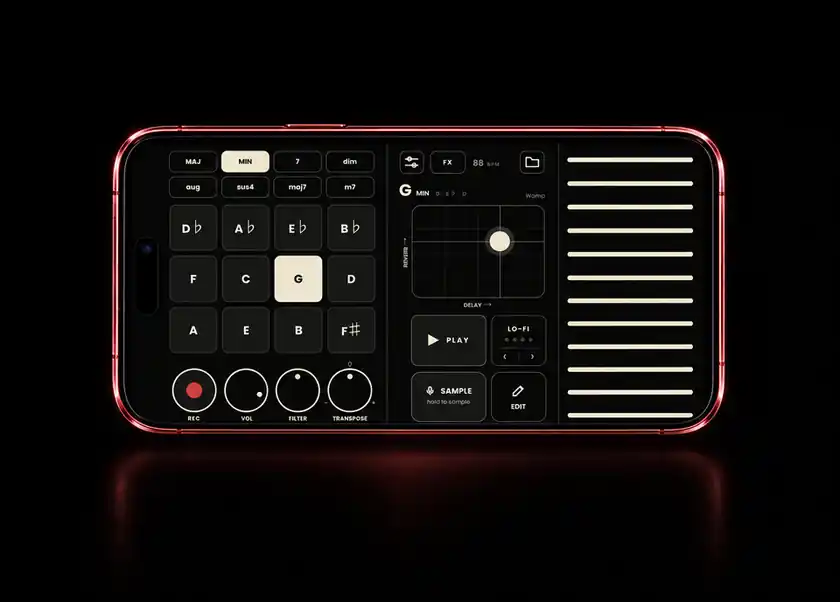
The screen is built for two thumbs. Your left thumb picks chords, your right thumb strums, and everything else lives in the middle where either hand can reach it.

Left thumb
Chord types, the 12 keys, and the REC, VOL, FILTER and TRANSPOSE row.
Middle
Settings, FX, tempo and files on top. The chord readout, the effects pad, PLAY, the pattern box, SAMPLE and EDIT.
Right thumb
The twelve strings, lowest note at the bottom.
On iPad the same layout scales up, and the keys rearrange into four rows of three so they stay comfortable to tap. If you turn an iPad upright or squeeze its window, GLIMR keeps the landscape layout and centres it.
03 · Chords
Tap a key to choose the root, and a chord type above it to choose the shape. Both stay selected until you tap another, so your left thumb is free between changes. You can also slide a finger across the keys, and each one you land on is selected.
The keys are laid out in the circle of fifths: neighbours are closely related chords, so moving one key over almost always sounds good.
Keys and chord buttons never make a sound themselves. Sound only comes from the strings. Until you tap your first key, the strings are dimmed and silent.
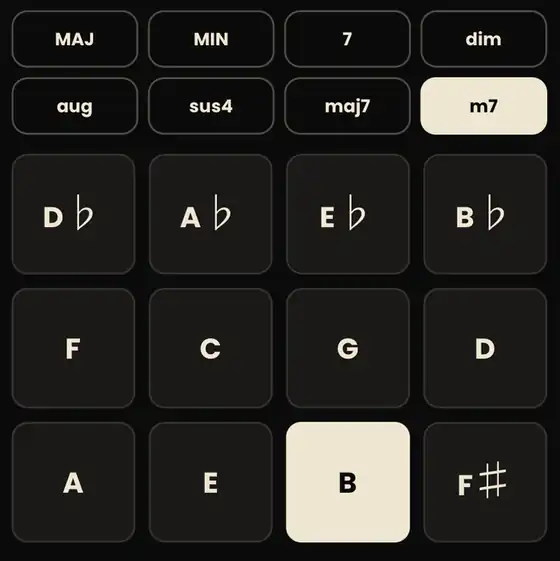
The eight chord types
C E G
C E♭ G
C E G B♭
C E♭ G♭
C E G♯
C F G
C E G B
C E♭ G B♭
The line above the effects pad always shows what you're playing, such as B m7 · B D F♯ A, with the active sound's name on the right.
04 · Strings & knobs
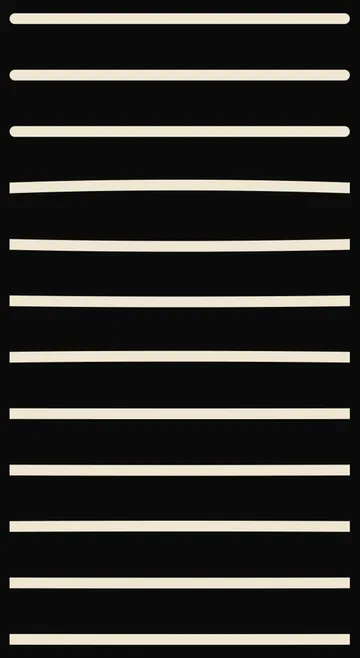
GLIMR has 12 strings, and every one plays a note of the chord you picked, so there are no wrong notes. They climb from C2 at the bottom: a three-note chord spreads over four octaves, and a four-note chord (7, maj7, m7) over three. No note is ever doubled.
Move your thumb up or down across them. A slow strum plays softly and a fast one plays loud.
Touch a single string. It sounds the moment you touch down, not when you let go.
Playing a ringing string again restarts it cleanly.
Notes already ringing finish naturally.
Higher strings play your sound faster and shorter, like speeding up tape. That's part of the character.
The knob row
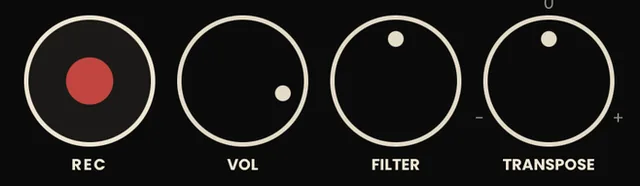
Drag a knob up or down to turn it. Double-tap any knob to put it back to its default.
Master volume for the strings and drums.
A DJ-style filter. In the middle it's off. Turn left to roll off the highs, turn right to thin out the lows. It only affects your sound, never the drums.
Three positions: down an octave, normal, or up an octave.
Records a take of everything you play. See Takes, below.
05 · Your sounds
Sample from the mic
Hold SAMPLE and make a sound: a tap on a glass, a hum, a kettle. The pad listens first and starts recording the instant it hears you, so there's no silence at the front. Let go to stop, or it stops by itself after 5 seconds.
Each sample is saved as Rec001, Rec002 and so on, and becomes the sound the strings play. GLIMR finds its pitch for you so chords come out in tune.
The very first time, iOS asks for microphone access. Allow it, then hold SAMPLE again.
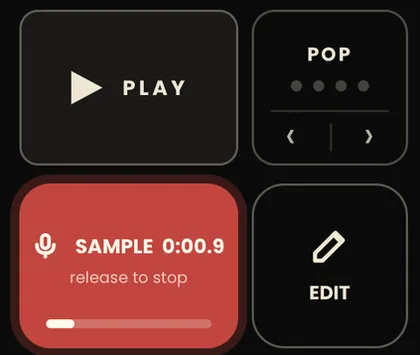
The orange dot
Your library
Tap the folder button at the top right to open your library. On the Samples tab, tap any sound to play it. Tap Import to bring in a file from the Files app: WAV, AIFF, MP3 and M4A all work, and stereo files are mixed to mono. Tap the bin beside a sound to delete it.
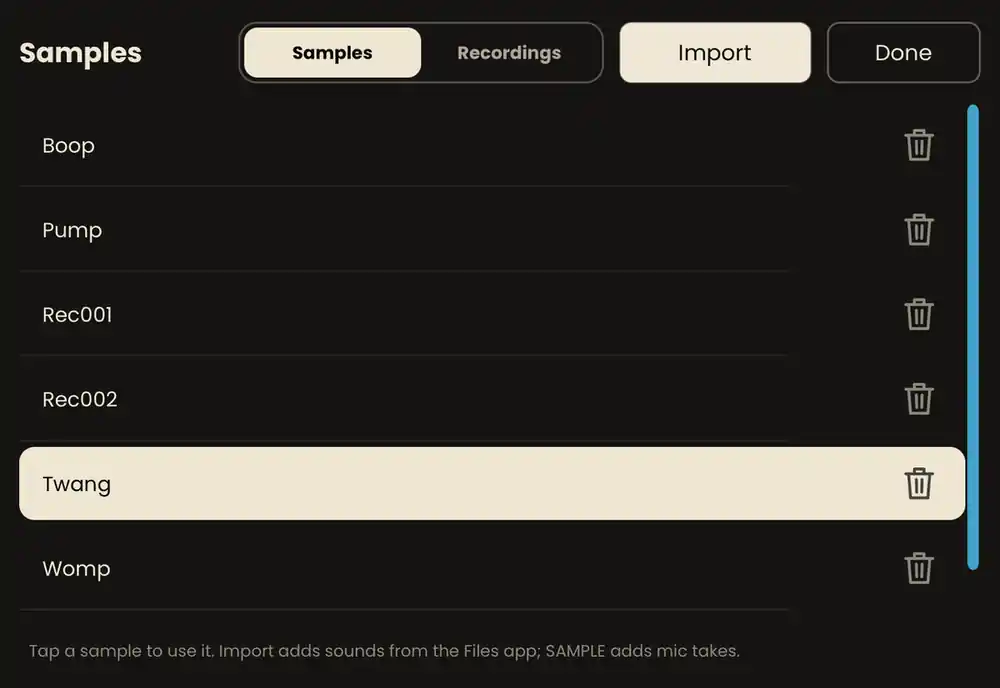
Short, clean one-shots work best. GLIMR keeps up to 30 seconds of any file, and the strings play up to 5 seconds of it. You choose which 5 in the sample editor. Imported files and recordings never overwrite each other.
If a file's name includes a note, like Pad_Eb.wav or Bell F#3.aif, GLIMR uses it to set the root note.
06 · Sample editor
Tap EDIT to open the sample editor for the sound that's playing. It sits beside the strings, so you can keep strumming and hear every change as you make it. Nothing you do here touches the original recording, so you can always drag a trim back.
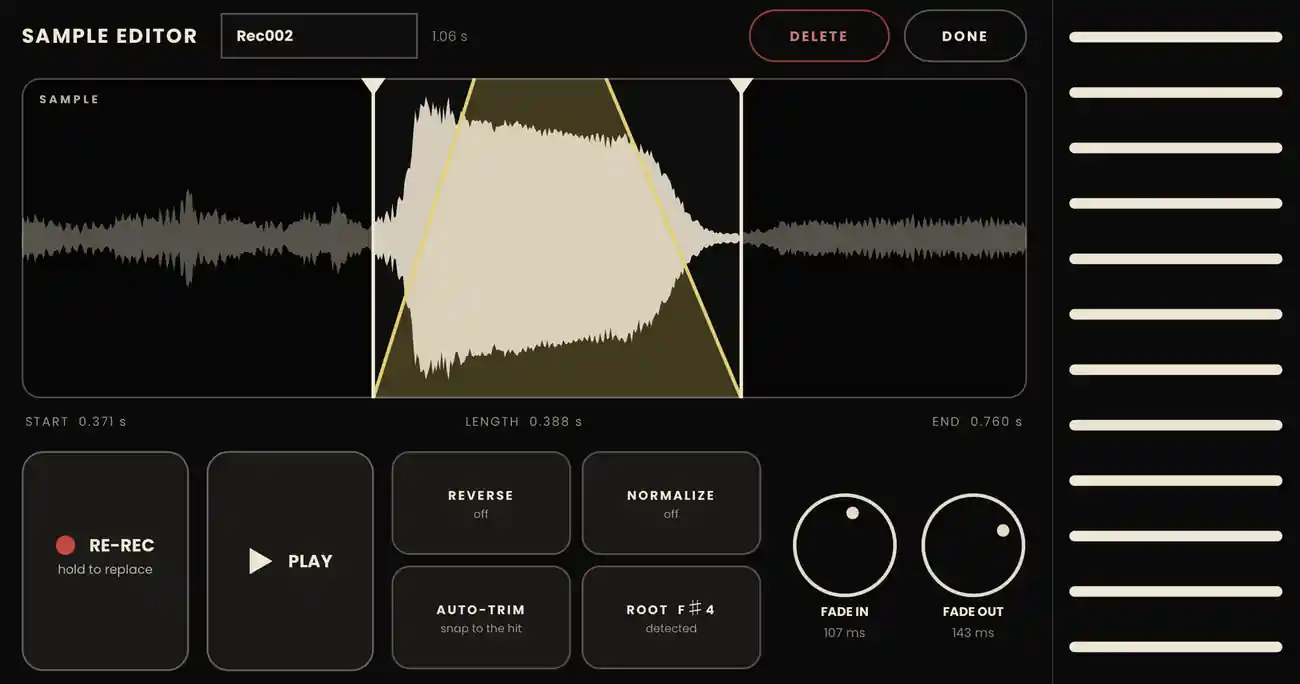
Tap the name to rename the sound.
Drag the two handles on the waveform to set where the sound starts and ends. The lit part is what plays. START, LENGTH and END show the exact times.
Hold to record a new sound in place of this one, keeping its name. The strings go quiet while you hold it so they don't get recorded.
Plays the sound once at its own pitch, with a playhead across the waveform.
Plays the sound backwards.
Brings quiet sounds up to full level. It's on for new recordings.
Snaps the handles to where the sound actually is.
The note GLIMR thinks your sound is. Tap it to change it (see Settings).
Smooth the start and end. Each knob can fade up to half the sound's length; the gold lines on the waveform show the shape.
Tap once, then tap CONFIRM within 3 seconds. This removes the sound for good.
Closes the editor. The strings go back to full width.
07 · Effects
The effects pad
Drag the dot: across adds delay, up adds reverb, from a small room at the bottom to a hall at the top. The bottom-left corner is dry. Double-tap the pad to reset it.
The delay is a ping-pong echo locked to the rhythm box tempo (a dotted eighth note), so echoes always sit in time, even when the drums are off.

The FX window
Tap FX for three more effects. Tap an effect's name to switch it on, then turn its AMOUNT knob (double-tap for 50%). The FX button shows a lit dot while any of them is on, and GLIMR remembers your settings.
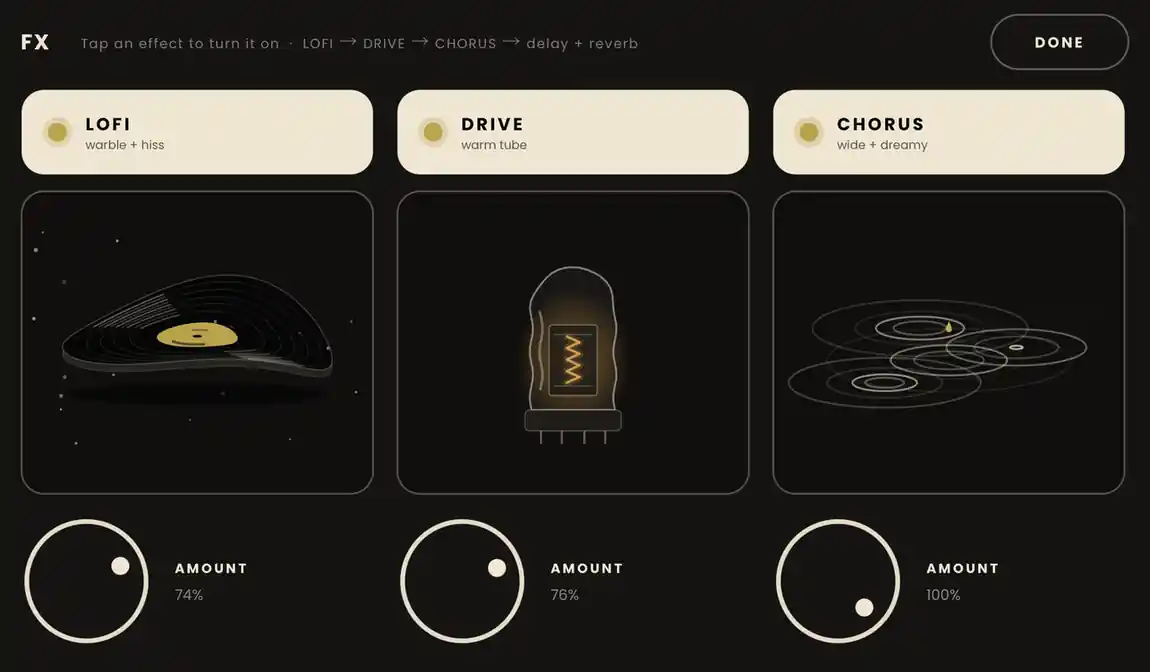
Warble and hiss: tape wobble, soft crackle and a darker top end.
Warm tube saturation. It adds grit without getting louder.
A wide, dreamy stereo chorus.
The chain runs LOFI → DRIVE → CHORUS → delay → reverb. Effects and the filter only ever touch your sound; the drums always stay dry and punchy.
08 · Rhythm box
Tap PLAY under the effects pad to start a beat. The square beside it shows the pattern: tap ‹ or › to change it, or tap the pattern name to open the Rhythm window.

50 to 200 BPM. Use − and +, drag the number, tap it to type one, or use TAP TEMPO.
Rock, Pop, Disco, Samba, Waltz (in 3/4), Bossa, Lo-fi and Ballad.
Pushes the off-beats late for a shuffle feel.
The drums' volume against your strings.
Tap twice within 3 seconds to bring an edited pattern back to how it started.
Writing your own beat
Tap an empty cell. Tap a hit to remove it.
Hold a hit and drag up or down. A bubble shows the level; brighter cells are louder.
Drag sideways. Starting on an empty cell fills, starting on a hit clears.
Each pattern keeps its own edits, and an edited pattern shows a small yellow dot. Your tempo, swing, level and edits are all remembered; the beat always waits for you to press PLAY.
09 · Takes
Tap ● REC in the knob row to arm a take. The ring pulses and the button says "play…". Recording starts on your first strum, so there's never dead air. Tap again to stop. A take can run up to 10 minutes.
If the drums are playing, the take starts on the downbeat of the bar you strummed in, drums included, so it lands right on the grid when you drop it into a DAW.
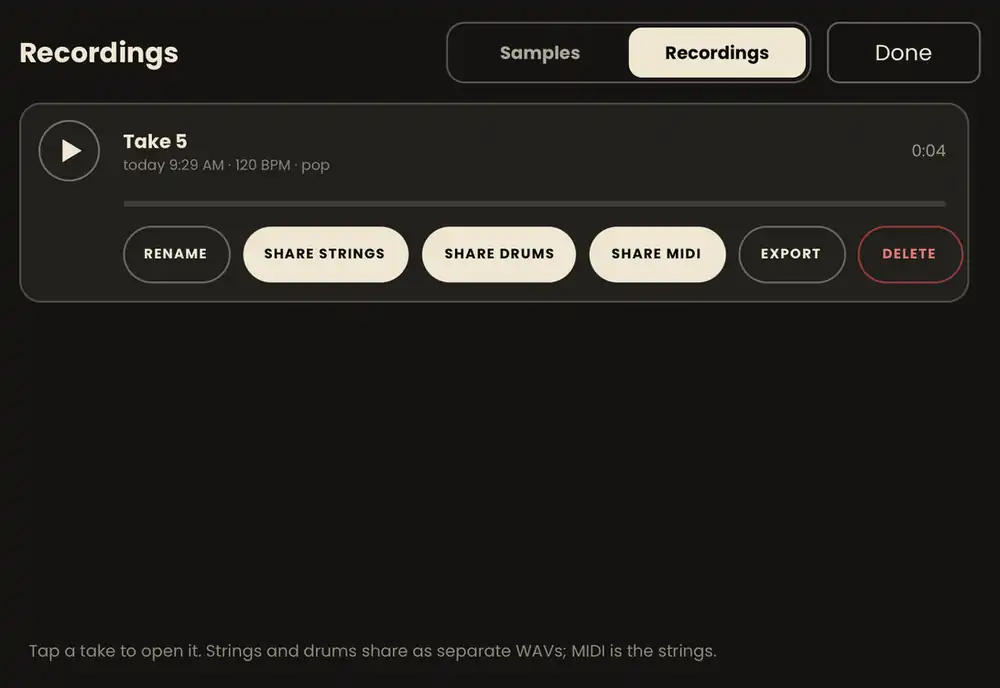
Find your takes in the library's Recordings tab, newest first. Tap ▶ to listen, or tap a take to open it.
Your playing with all its effects, as a stereo 24-bit WAV.
The rhythm box on its own, as a mono 24-bit WAV. Only shown if drums played.
Every note you strummed, at the take's tempo, ready for any instrument in your DAW.
Saves all of the take's files together to a folder in the Files app.
Delete asks you to tap twice.
Into your DAW
10 · Settings
Tap the sliders button at the top left, or the ROOT button in the sample editor. The root note is the note your sound plays at its natural pitch. GLIMR detects it, but if a sound comes out off, pick the right note and octave here and every chord falls back in tune.
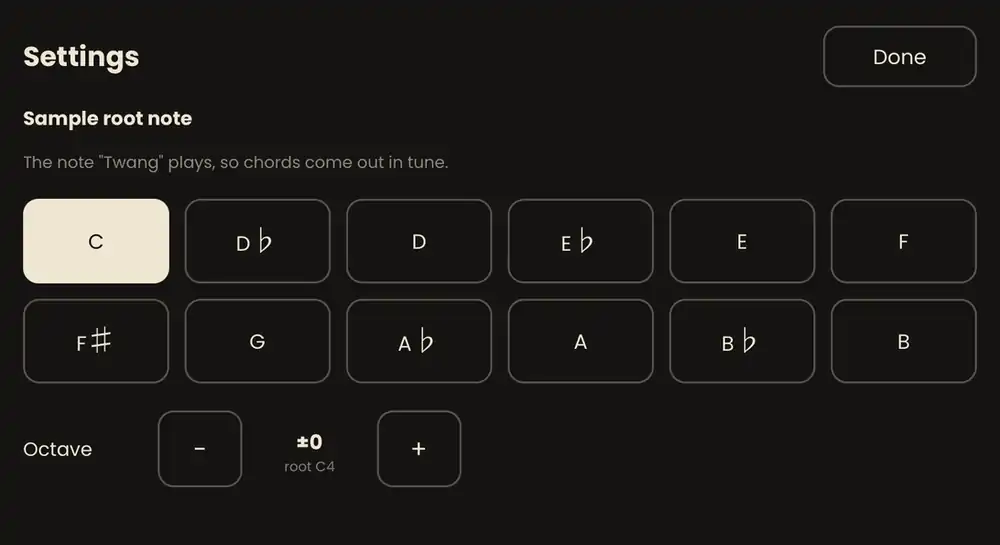
Sounds without a clear pitch, like a clap or a noise, start at C4. Tune them by ear here until they sit with the drums or your other parts.
11 · Troubleshooting
The strings don't make a sound
Tap a key on the left first. The strings stay dimmed and silent until you pick a chord. Also check that VOL isn't turned all the way down and your phone's volume is up.
SAMPLE says "didn't hear anything · check mic"
GLIMR needs microphone access. Open the iOS Settings app, go to Privacy & Security › Microphone, and turn on GLIMR. Then hold SAMPLE and make a clear, close sound.
SAMPLE says "keep holding to sample"
The take was too short to keep. Hold the pad until your sound has finished.
My chords sound out of tune
The root note is probably off. Open Settings, or tap ROOT in the sample editor, and choose the note your sound actually plays.
The high strings are short and chirpy
That's how GLIMR repitches: higher notes play your sound faster, like tape. Try a longer sound, trim and fade it in the sample editor, or turn TRANSPOSE down an octave.
My take says "nothing played"
A take only starts on your first strum. If you armed REC and didn't play, nothing was saved.
Effects aren't changing the drums
That's on purpose. The filter, FX window, delay and reverb only affect your sound, so the beat stays tight.
Still stuck? Visit the Support page or email support@ghostkickaudio.com.
GLIMR support